AutocompleteText expander for Android & Windows

Type everyday phrases in a few keystrokes

Save the greetings, email replies and account details you type again and again. Type a shortcut like ;ty and it turns into your saved text. Keep the keyboard you already use.

Android 7.0+ · Contains ads · In-app purchases

This demo types two shortcuts for you. Tap the text field or a shortcut to stop it and try your own.

Try it here

Two shortcuts, expanded.

Saved 109

Type a shortcut from the list below, or tap one.

Adds the shortcut to the field and expands it.

This demo runs only on this page. Nothing you type is saved or sent.

Here’s how it works in the app

Save shortcuts and their text in a list, then type a shortcut in another app’s text field. You can also tap a suggestion that appears while you type.

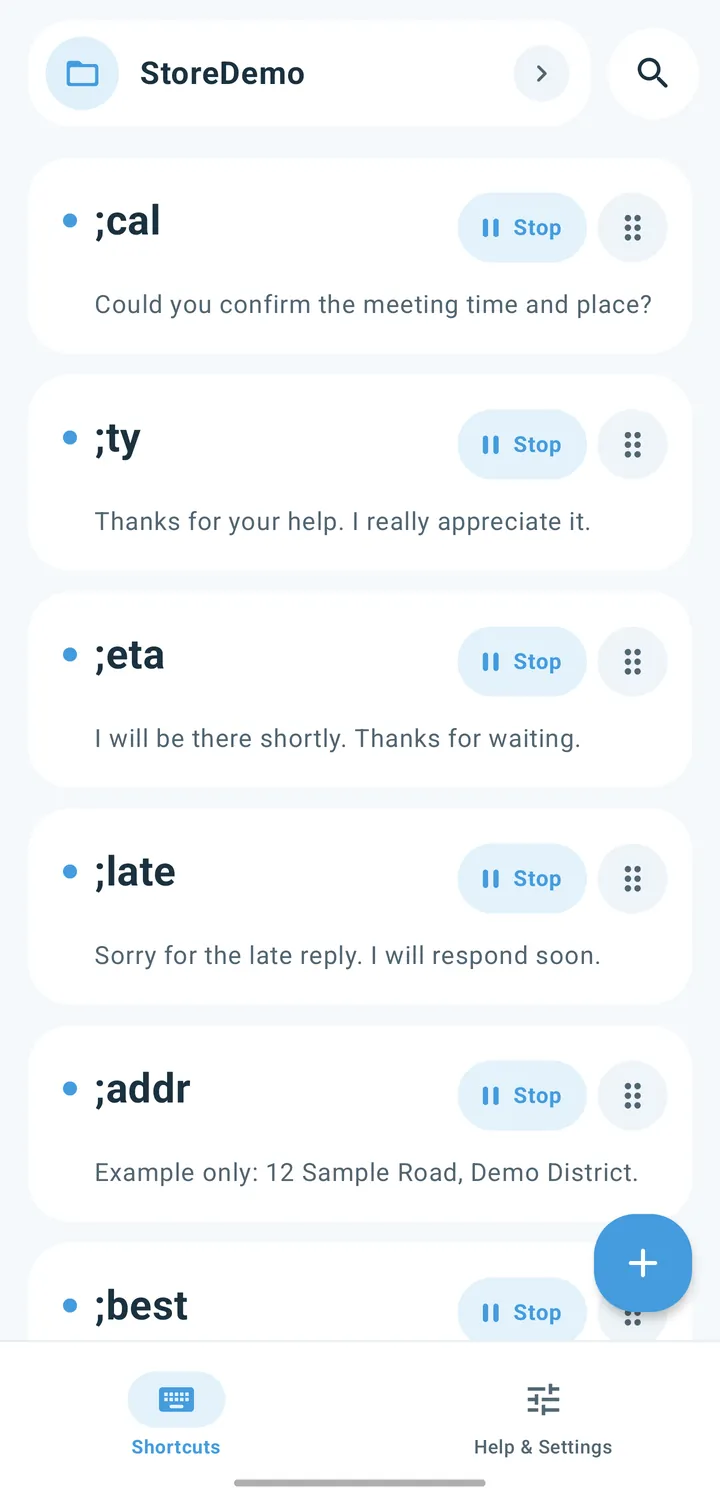
Autocomplete’s shortcut list, showing ;cal, ;ty and ;eta with the text saved for each.
Your saved shortcuts
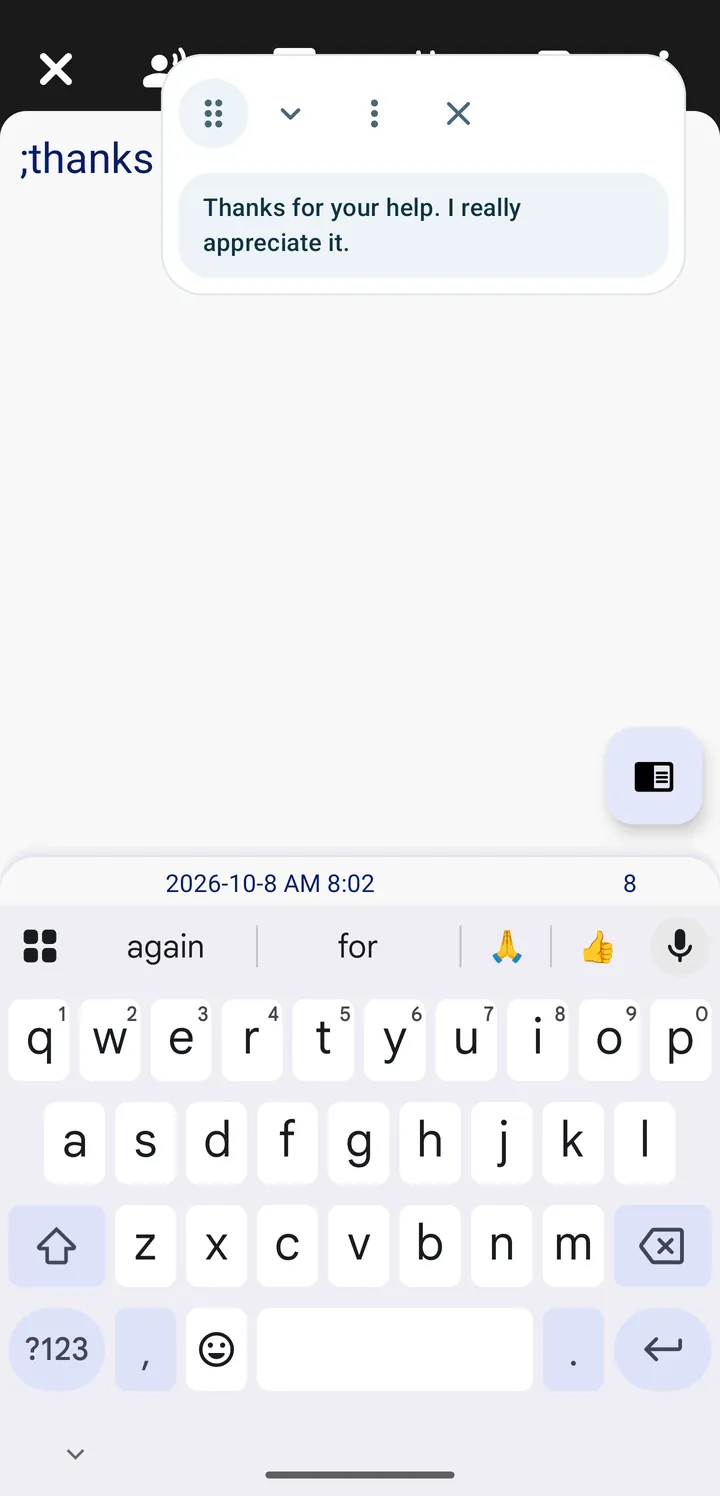
A text field with ;thanks typed and the suggestion “Thanks for your help. I really appreciate it.” floating above it
A suggestion while you type

Add details that change, like today’s date

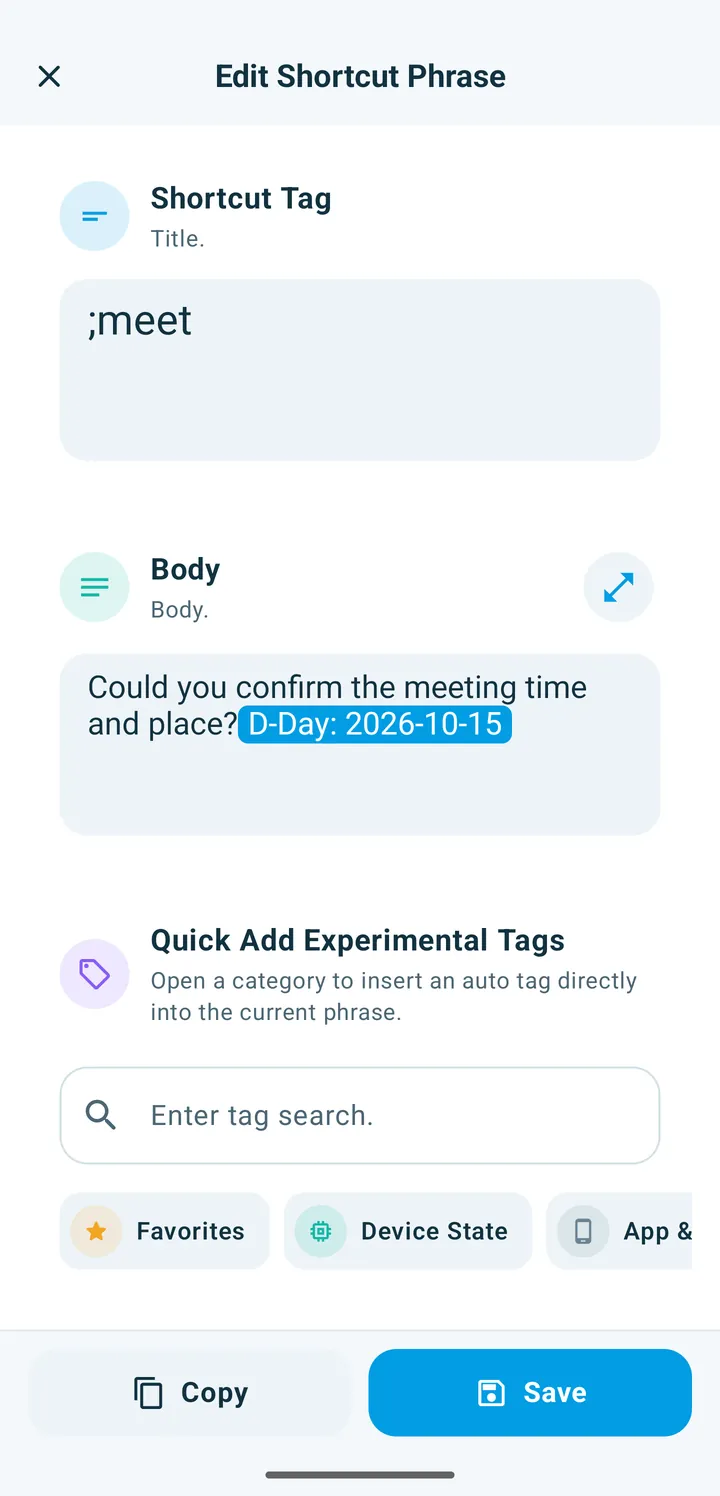
Put a tag in your text and it fills in the moment you type. A D-day tag even counts the days to a deadline.

  • Date & weekday
  • Time
  • D-day
  • Current location
  • Random numbers & characters
  • Battery & storage
  • Clipboard
  • Calculation

Saved text

Today is [MM]/[DD]/[YY].

What gets typed

Today is 10/17/2026.

The result uses today’s date on this device.

The current location tag needs location permission. This web page never reads your location or clipboard.

The phrase editor with the shortcut ;meet and the text “Could you confirm the meeting time and place?” followed by a D-Day tag
A D-day tag added to a phrase
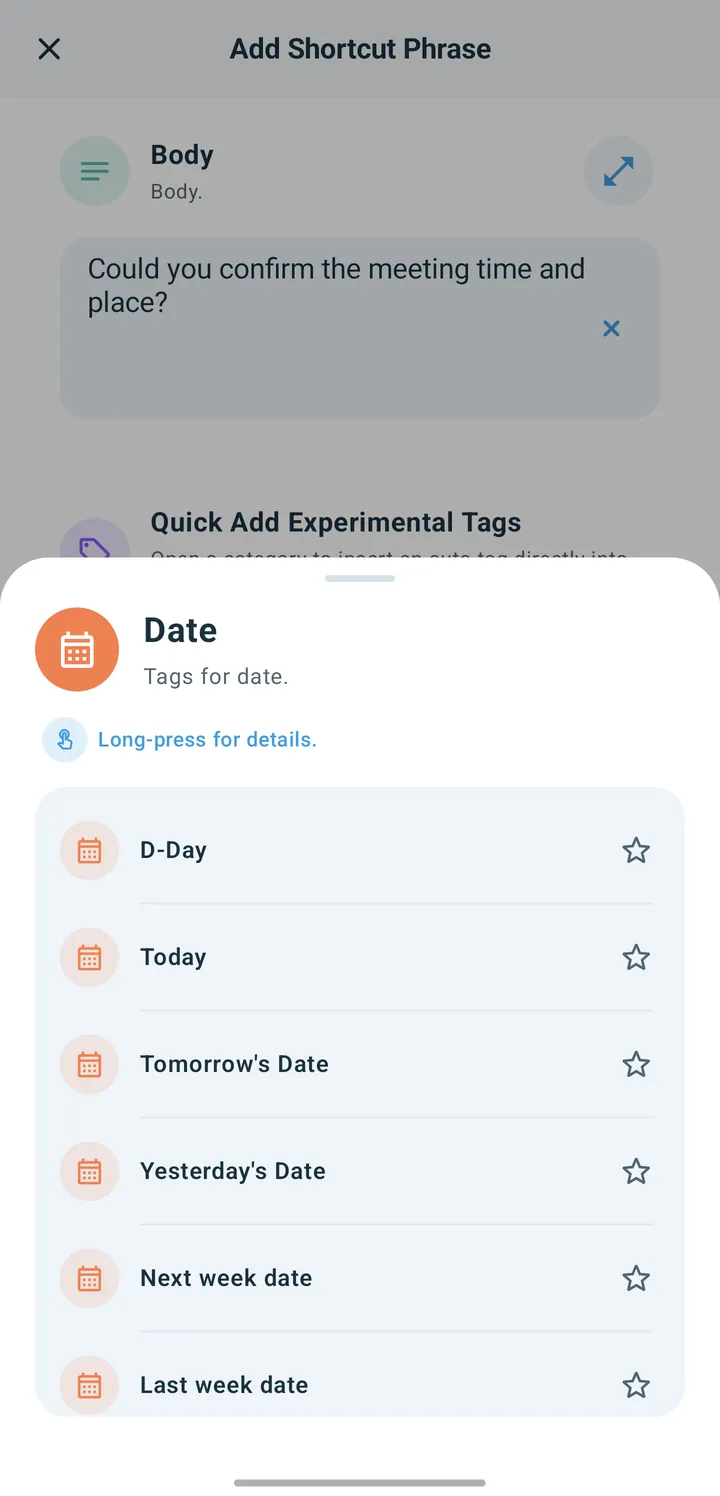
The Date tag list: D-Day, Today, Tomorrow’s Date, Yesterday’s Date, Next week date, Last week date
Choosing a date tag

Set it up the way you type

These features are for the Android app.

Four ways to replace a shortcut

Replace a shortcut right away or pick from suggestions. You can also choose what triggers it (Space, a delimiter or instantly) and add a delay.

  • InstantReplaces a matching shortcut right away.
  • AutomaticReplaces it if there’s one match, or lets you choose if there are more.
  • OverlayTap a suggestion in a small floating window.
  • Keyboard barSwipe through suggestions just above your keyboard.
  • Folders

    Group phrases into folders like Work and Personal, and drag to reorder.

  • Backup to a file

    Create a backup file, restore it or share it with someone.

  • App lock

    Protect your list with a 4-digit password or your fingerprint.

  • Excluded apps

    Turn it off in the apps where you don’t want it.

  • Add from the share menu

    Select text in any app, tap Share, and save it to Autocomplete.

Accessibility access is used only for text replacement

Autocomplete detects what you type so it can spot your shortcuts. The privacy policy explains exactly what is processed and how.

Jump to input detection and permissions
Accessibility service
Used only to find and replace shortcuts in other apps.
Where data stays
Shortcuts, text, folders and settings are processed on your device by default.
What you type
Never sent to a server or sold.
Windows privileges
Runs with standard privileges. Asks for admin rights only if you turn on admin mode.

Get it for your device

The Android and Windows apps are separate. Get it from Google Play on your phone or the Microsoft Store on your PC.

Autocomplete for Android

Shortcuts for what you type on your phone

Get it on Google Play
Requires
Android 7.0 or later
Price
Contains ads · In-app purchases
Google Play
50K+ downloads · Rated 4.2 (Oct 2026)
Permissions
Accessibility service (location for the current-location tag) About permissions
Backup
Back up, restore and share as a file

Autocomplete for Windows

Shortcuts for what you type on your PC

Get it from Microsoft Store
Get it from
Microsoft Store
Privileges
Standard (admin mode only if you turn it on)
Features & price
See the Microsoft Store listing

The Android and Windows apps don’t sync with each other.

Make your first shortcut

  1. Install the app and turn on accessibility

    Install it from Google Play, then follow the in-app guide.

  2. Save a shortcut and its text

    Pick something you’d never type by accident, like ;hi for a greeting you use a lot.

  3. Type the shortcut where you need it

    Choose the replacement mode and the apps to use it in.

Frequently asked questions

Have another question? Email us.

Send an email
Do I need to switch keyboards?

No. Autocomplete doesn’t replace your keyboard. It uses the Android accessibility service to turn the shortcuts you save into full text. Whether it works can depend on the app’s text field, your device and your permission settings.

Read the Privacy Policy
Why does it need accessibility permission?

It’s used to detect shortcuts in other apps’ text fields and replace them with the text you saved. Dynamic shortcuts that insert your current location need a separate location permission. See the Privacy Policy for details on what is processed.

Read the Privacy Policy
Can I move my shortcuts to a new phone?

The Android app can back up your shortcut data to a file and restore it. Keep a copy of the backup file before you switch devices. This doesn’t guarantee automatic syncing or backup file compatibility between Android and Windows.

How are dynamic shortcuts different from regular ones?

They add information that changes, like the date and time, to your saved text. You can use D-day, current location, random values, battery and storage, the clipboard and more. Check the Android app for supported tags and the permissions they need.

Does the Windows version have the same features?

The features and app screens on this page are for the Android app. Check the Microsoft Store for the features and installation requirements of the Windows version. If installation doesn’t go smoothly, see the installer help.
See installer help

Start with the greeting you typed today

Features and screens are based on the Android app (checked October 2026). Ratings, downloads and price can change, so check the Google Play listing.